The fastfetch command in Linux will output system information, distribution information, and an ASCII logo of the distro in terminal. The command is often seen in screenshots from users that wish to show off their system specs or the Linux distribution they're using.
In this guide, you'll see how to install Fastfetch on Linux, and use the fastfetch command to see system information and get that cool screenshot you're hoping to post somewhere.
Install Fastfetch
Use the relevant command below to install Fastfetch on your Linux distribution.
To install Fastfetch on Debian-based systems, including Ubuntu, Debian, Linux Mint, Kali Linux, Pop!_OS, Elementary OS, etc:
$ sudo apt install fastfetch
Red Hat based systems use Fastfetch instead of Fastfetch, including on Fedora, Red Hat, CentOS, AlmaLinux, Rocky Linux, Oracle Linux, etc:
$ sudo dnf install fastfetch
To install Fastfetch on Arch Linux based systems, including Manjaro, Arch Linux, Artix, etc:
$ sudo pacman -S fastfetch
To install Fastfetch on openSUSE:
$ sudo zypper install fastfetch
Fastfetch Command Examples
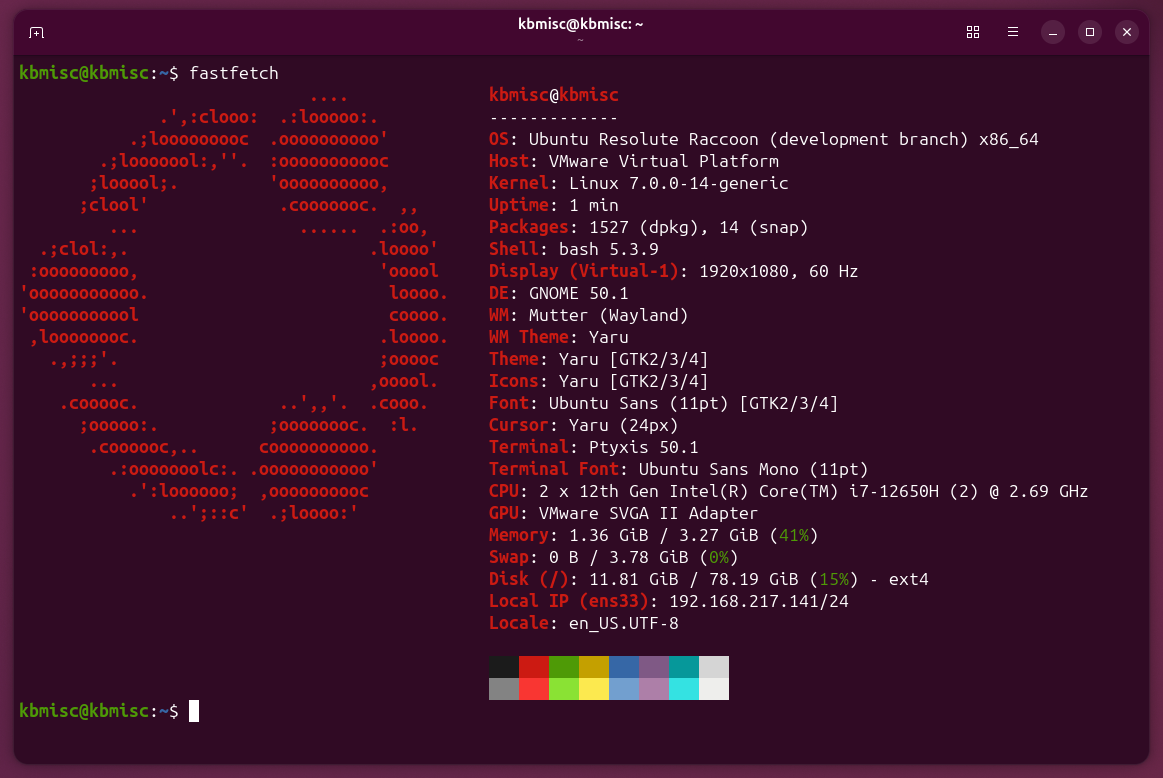
Example 1. To use Fastfetch, you can just enter the fastfetch command, with no further options, in terminal.
$ fastfetch
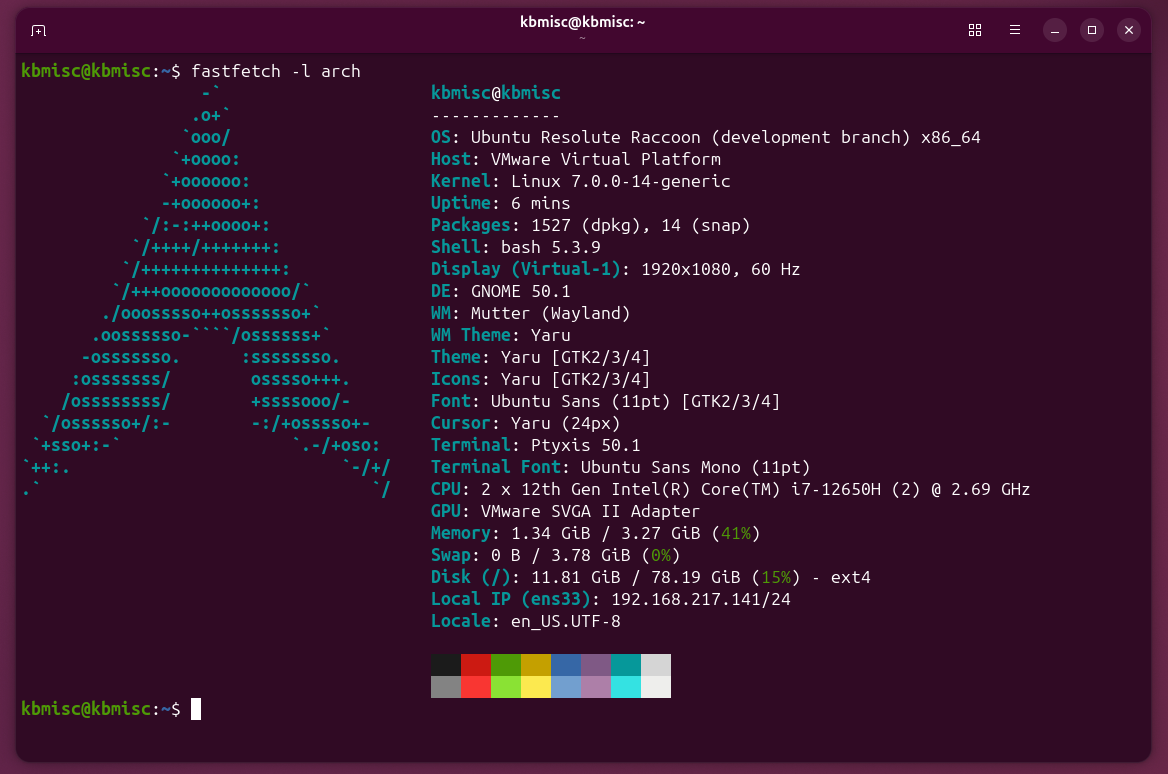
Example 2. Want to see the ASCII logo for a different distribution? Use the -l option, and specify the name of the distro you wish to see.
$ fastfetch -l arch
To see a list of names you can specify (over 500 distros) run fastfetch --list-logos.
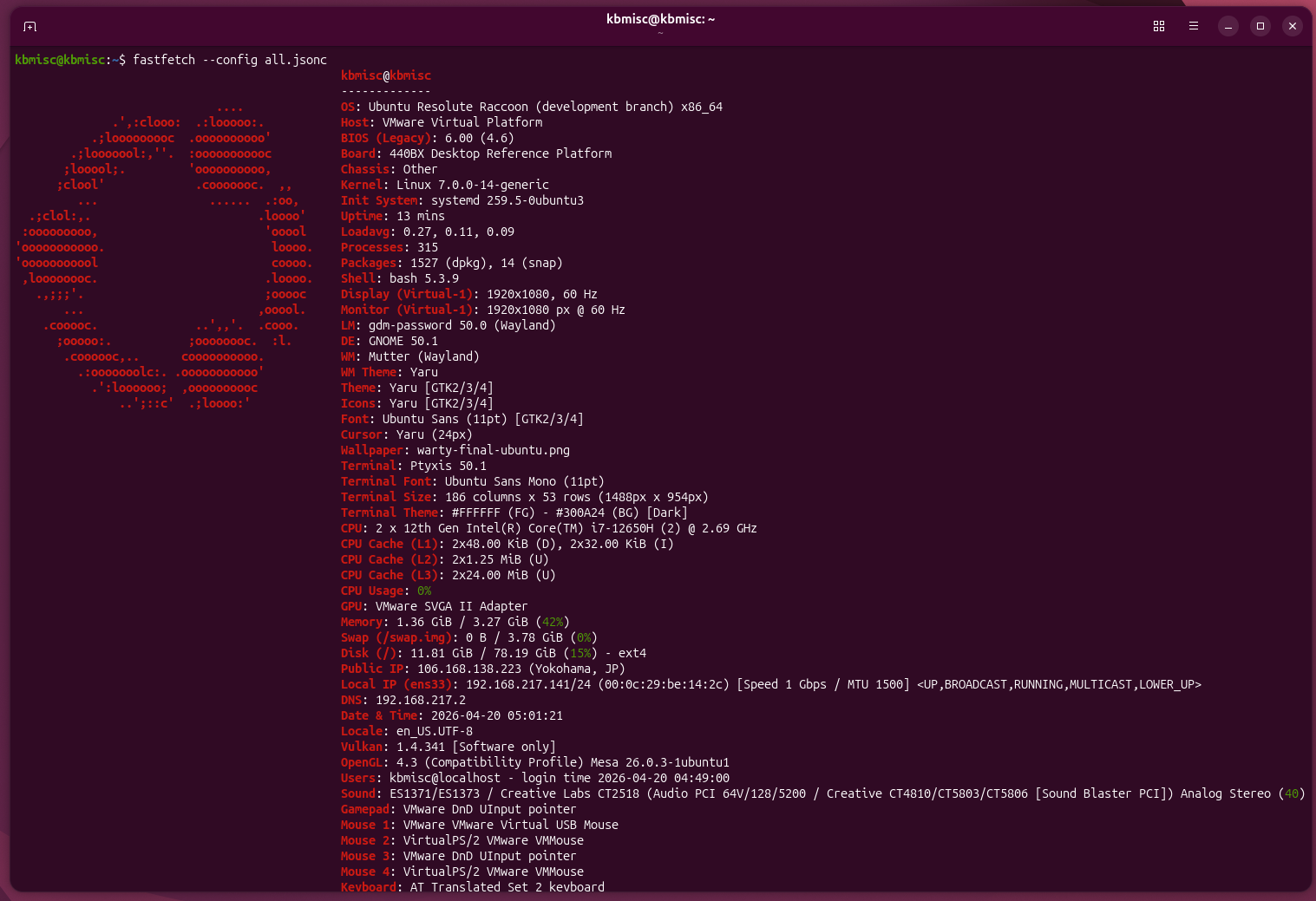
Example 3. We can get Fastfetch to output even more information. For example, the --config all.jsonc option instructs Fastfetch to display all of the information it has about our operating system and peripherals.
$ fastfetch --config all.jsonc
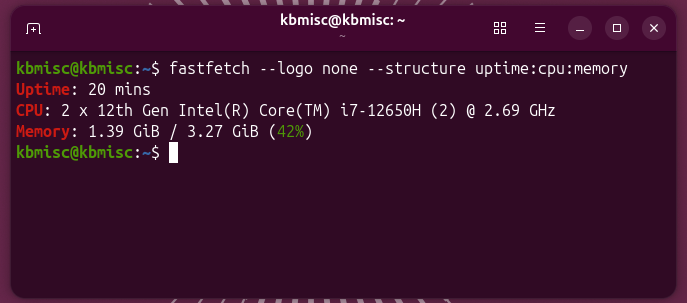
Example 4. Fastfetch can be used for more than just showing off neat screenshots. It's a slick way to obtain concise system information. For example, use the --structure option and specify the specs you wish to see, colon separated. Add the --logo none option to remove the OS logo.
$ fastfetch --logo none --structure uptime:cpu:memory
Uptime: 20 mins
CPU: 2 x 12th Gen Intel(R) Core(TM) i7-12650H (2) @ 2.69 GHz
Memory: 1.39 GiB / 3.27 GiB (42%)
Conclusion
Fastfetch has a staggering number of options. The examples we've shown here only scratch the surface, and yet are the only commands that 99% of users are likely to need. To see what other options you can specify with Fastfetch, run the fastfetch --help command.